Table of Contents
Overview
The logical imager allows you to collect files from a live Windows computer. The imager is configured with rules that specify what files to collect. Rules can be based on file attributes such as folder names, extensions, and sizes. You can use this feature when you do not have time or authorization to perform a full drive acquisition.
Logical imager can save the matching files in two ways. The default method is to save individual files, which is the faster method and uses less disk space. The other option is to produce one or more sparse VHD images that contain all of the file system data that was read. These VHD images can be imported into Autopsy or mounted by Windows. In either case, the logical imager also enumerates the user accounts on the system and can generate alerts if encryption programs exist.
The general workflow is:
- Configure logical imager using Autopsy. This will copy a configuration file specifying which files to collect and the logical imager executable to the target drive.
- Insert the drive into the target system and run logical imager. This will give you a folder containing either the matching files or one or more sparse VHDs, a file containing user account information, and a record of which files generated alerts.
- Load the result of running logical imager into Autopsy to browse any matching files and see user account information.
Currently logical imager can only be configured on Windows, and will only analyze Windows systems. You will also need to be able to run logical imager as administrator on the target system.
Configuration
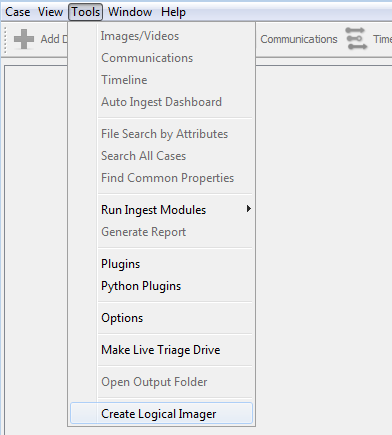
To start, open Autopsy and go to Tools->Create Logical Imager.
-
Configuring an external drive
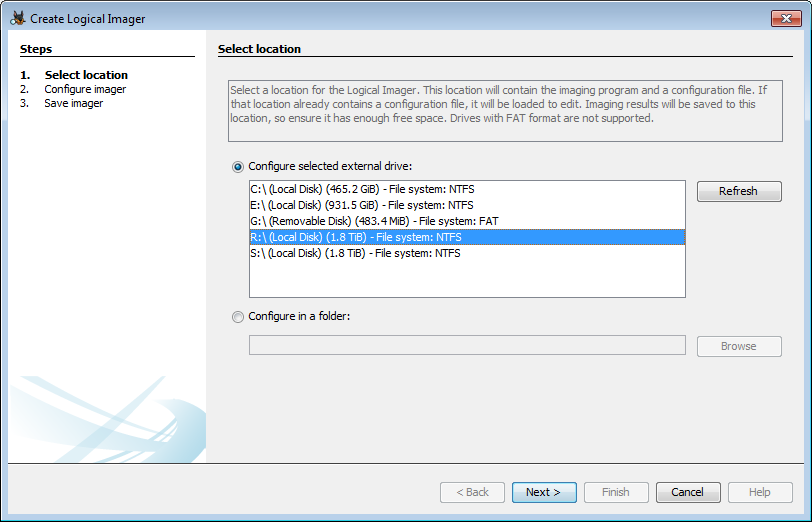
The normal use case is to select a drive from the list under "Configure selected external drive." This will put the logical imager executable and a configuration file into the root directory of that drive once you finish the configuration. Note that logical imager can only be configured and run on a non-FAT drive (except exFAT) due to the 4 GB max file size on FAT systems.
-
Configuring in a folder
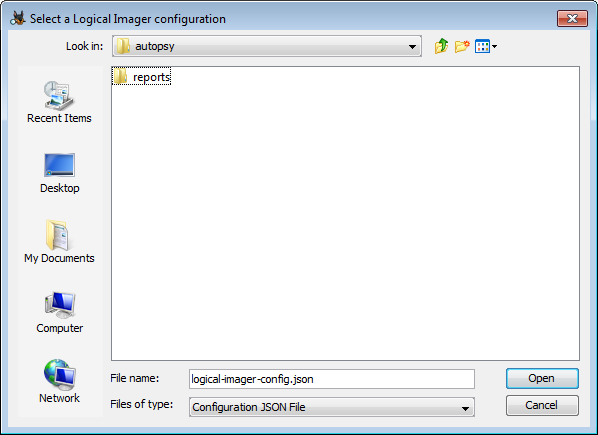
If you're not ready to set up your drive yet, or if you want to create a different configuration file, you can use the second option to browse to a folder or an existing configuration file. If you're creating a new file, browse to the folder you want to create it in. Notice that the configuration file has the default name "logical-imager-config.json". You can change this, but if you do you'll need to rename it after you copy it to your drive or use the command prompt to run the imager. See the section on Running from a Command Prompt.
In either case you can now configure your imager. If the configuration file already exists, this screen will be loaded with the current settings from the file.
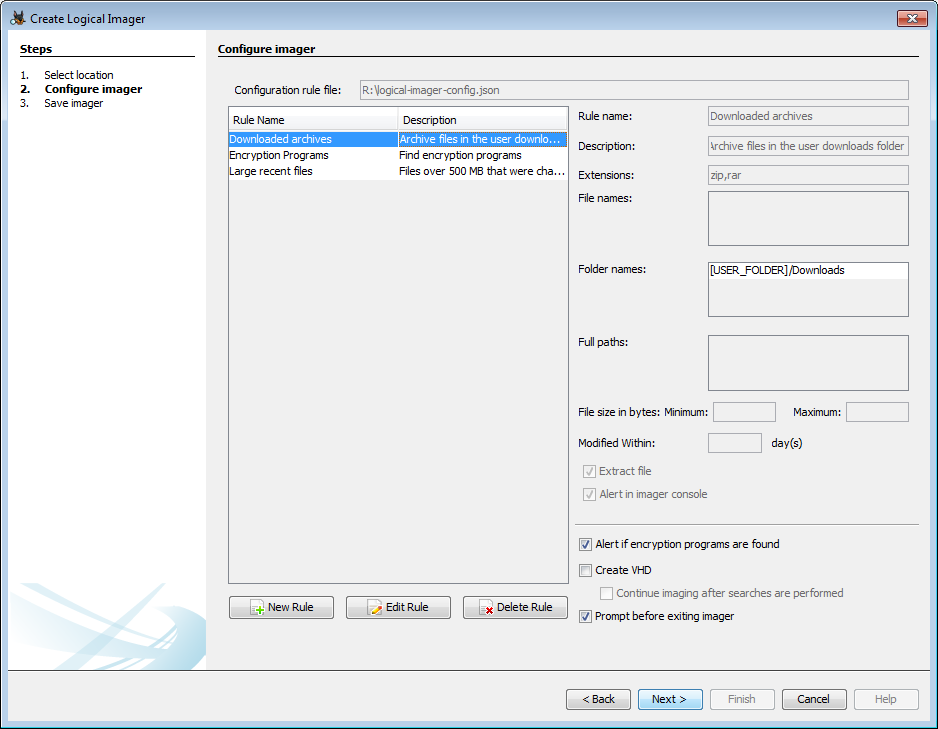
On the left side you can see each rule in the configuration file. Each of these rules will be applied against the live system. A rule has a name, an optional description, one or more conditions, and settings for what should happen when a file matching the rule is found. When you select a rule you'll see all the settings for that rule on the right side of the panel. You can edit or delete rules once you select them. There are also global settings in the bottom right that apply to the configuration file as a whole:
-
Alert if encryption programs are found - This will add a predefined rule to find encryption programs and alert and export any that are found. You will not be able to edit this rule.
- Prompt before exiting imager - If selected, you will have to press a key at the end of the logical imager run. This keeps the command prompt window open so you can look at the output.
-
Create VHD - If selected, a sparse VHD will be created while running logical imager. See more details below.
- Continue imaging after searches are performed - Only relevant when creating a VHD. By default, the logical imager will only copy sectors that it uses or that are part of matching files being exported. If this option is selected, logical imager will go back through the image after the rule matching is complete and copy over any remaining sectors. This will take longer to run and result in much larger VHD images.
More information on creating a VHD versus saving any matching files directly:
-
Non-VHD mode
- In this mode, any files matching a rule that has "Extract File" enable will be copied to the logical imager output folder. The paths and names are shortened in the output folder but will appear in their original form once the results are loaded into Autopsy.
- Pros: Faster than creating a VHD and will typically use significantly less disk space
- Cons: Not all file metadata is preserved; no additional data about the file system is saved
-
VHD mode
- In this mode, all data read by the logical imager is copied into a VHD. This will include any matching files in their entirety, and also metadata for all files on the system.
- Pros: More complete metadata for the matching files, contains information about the system beyond the matching files. Have the option to copy the entire file system.
- Cons: Slower and uses more disk space. Can also be confusing in Autopsy because many file entries will have no data (their metadata was copied to the VHD but not their contents)
To make a new rule, click on the "New Rule" button.
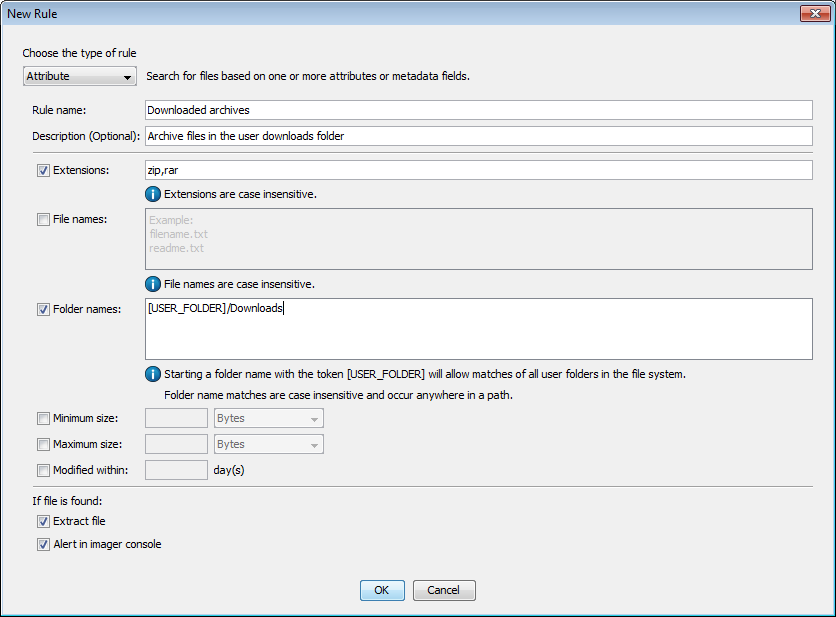
There are two rule types to choose from:
- Attribute rules allow you enter multiple conditions that must be true for a file to match
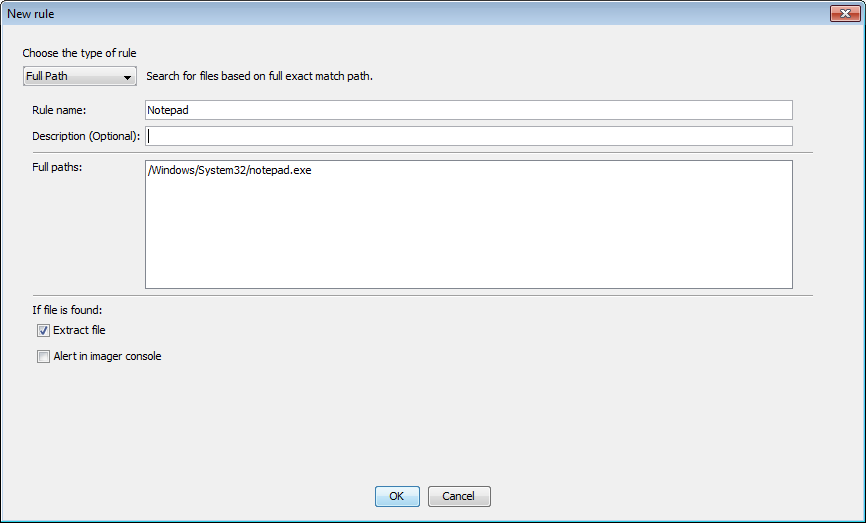
- Full path rules allow you to enter one or more full paths (path and file name) which must match exactly
For either rule type, you start by entering a rule name and optional description. You will also need to choose at least one action to take when a match is found.
- Alert in Imager console if rule matches - this will display the file data in the console and add it to the "alerts.txt" output file.
- Extract file if it matches a rule - this will ensure that the matching file's contents will be copied to the output folder or sparse VHD
Attribute rules can have one or more conditions. All conditions must be true for a rule to match.
- Extensions - File must match one of the given extensions (comma-separated). Extensions are case-insensitive.
- File names - File must match one of the given file names (new line-separated). File names should include extensions and are case-insensitive.
- Folder names - File must match one of the given paths (new line-separated). The given path may be a substring of the file path. You can use "[USER_FOLDER]" to match any user folder on the system. For example, "[USER_FOLDER]/Downloads" will match the downloads folder in any user folder, such as "Users/username/Downloads".
- Minimum size / Maximum size - File must be in the given range. You can either both fields to specify a range or use just one to match all files larger or smaller than the given size.
- Modified Within - File must have been changed within the specified last number of days
Full path rules have a single condition.
- Full paths: File must exactly match one of the given full paths (new line-separated)
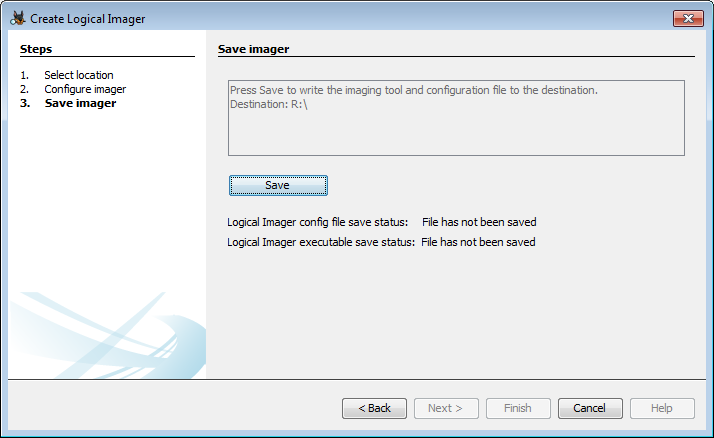
Once you've set up all your rules, go to the next panel and click "Save" to save your configuration file and the logical imager executable to the location you selected.
Running Logical Imager
Running with the Default Configuration
Using the defaults in the configuration process will create a drive with the config file (named "logical-imager-config.json") and the logical imager executable in the root folder of your drive.

The default case is to run the logical imager on every drive except the one containing it. Note that the logical imager executable must be in the root directory for the drive to be skipped. To run the imager, right-click on "tsk_logical_imager.exe" and select "Run as administrator". This will open a console window where you'll see some information about the processing and if you set any rules to create alerts, you'll see matches in the console window as well. Depending on which option you selected during configuration, the window may close automatically when the processing is complete.
The logical imager will start writing to a directory next to the executable.

Running from a Command Prompt
To run the logical imager with custom settings, you'll need to first open a command prompt in administrator mode (right-click and then select "Run as administrator"). Then switch to the drive where logical imager is located. You can run using the default configuration by simply typing "tsk_logical_imager.exe".
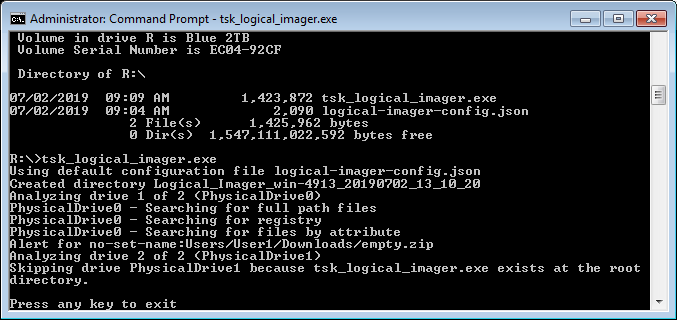
If your configuration file is not named "logical-imager-config.json" (for example, if you have multiple configuration files for different situations), you'll need to specify the file name using the "-c" flag.

If you want to specify the drive to run on, you can use the "-i" flag. This can be helpful for testing your configuration file - you can create a small USB drive with files that should match your rules to ensure that everything is working correctly before using it on a real system. The following example shows how to only run on the "G" drive on this system:

Viewing Results
Output folder structure
If logical imager was run in the default mode (not creating a VHD), the output folder will look similar to this:
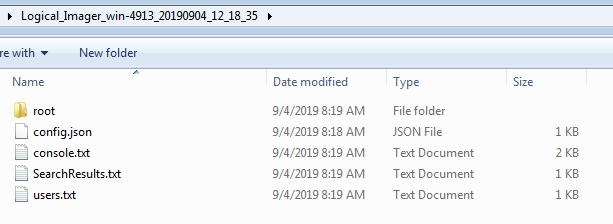
Folder contents:
-
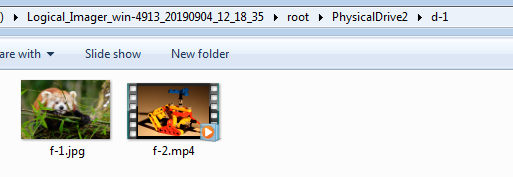
root folder containing any extracted files. These can be viewed directly in Windows explorer but since the names have been changed and directories flattened, it is better to view them in Autopsy.
- config.json is a copy of the configuration file used to generate the output
- console.txt is a copy of everything written to the Windows console
- SearchResults.txt is used when adding the results to Autopsy to match up the exported files with their original paths and file names, and the rule that they matched. This file will be added to the Autopsy case as a report.
- users.txt contains information on user accounts found in the system. It will also be added to the Autopsy case as a report.
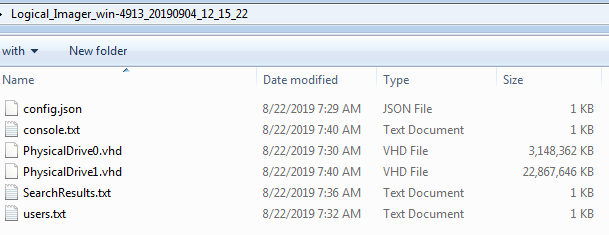
If logical imager was set to create VHDs, you'll see those VHDs in the output folder (along with the other output files described above except the root folder):
Adding results to Autopsy
The logical imager results can be added to an Autopsy case as a data source. This brings in either just the matching files or the sparse VHD(s) as a disk image, and also adds the other files created by the logical imager. Select the "Autopsy Imager" option and proceed to the next page.
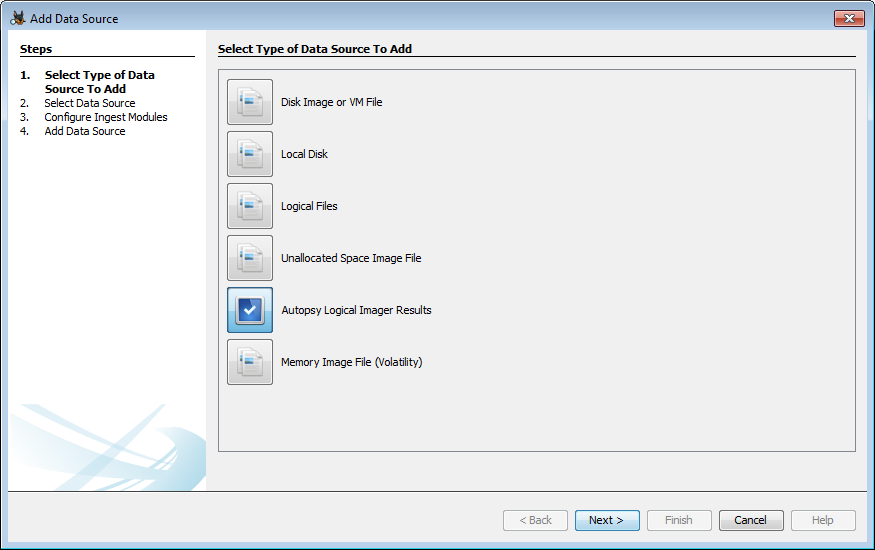
In the top section, you can see all the logical imager result folders in the root folder of each drive. Select the one you want to add and then hit the "Next" button.
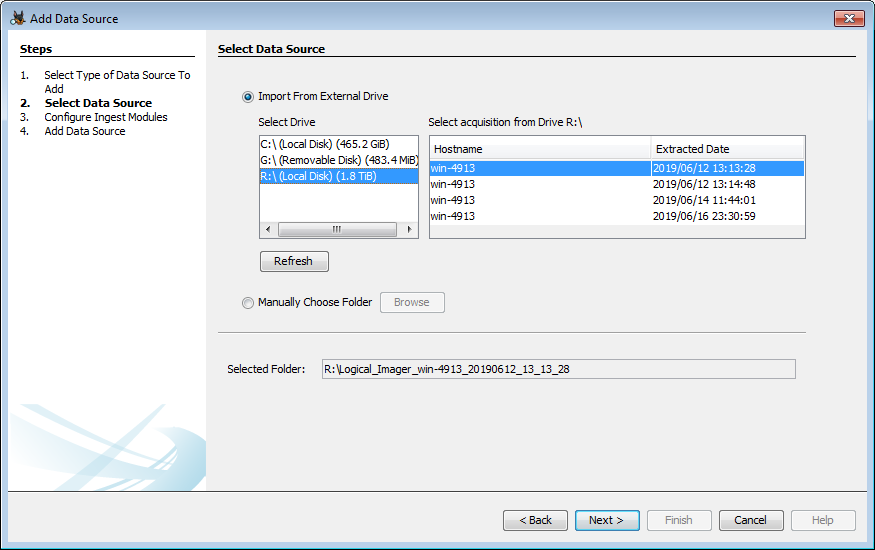
If your logical imager results are in a different location, select "Manually Choose Folder" and use the "Browse" button to locate your results.
In either case you'll get to configure the ingest modules to run. You can run any of them, but if you created a VHD your disk image may not be complete you may see more errors than normal. For example, the sparse VHD will contain the entire file allocation table but the actual data that goes with most of the files will be missing.
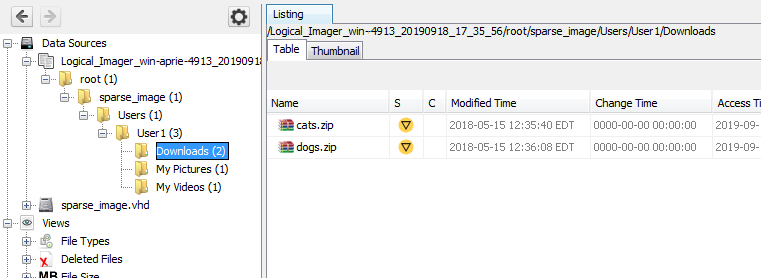
Regardless of whether you used a VHD or not, the matching files will appear in their original path with their original name in the Tree Viewer. If you did not create a VHD, you will only see matching files in the tree. If you did create a VHD, you'll see entries for non-matching files as well, though the contents of these files may not exist.
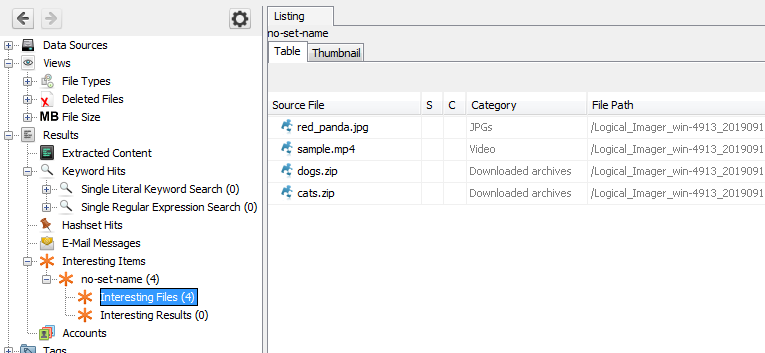
Interesting File artifacts will be made for any files that match the rules.
The alert and user files created by the logical imager can be found under the Reports section of the Tree Viewer.
Copyright © 2012-2024 Sleuth Kit Labs. Generated on
This work is licensed under a
Creative Commons Attribution-Share Alike 3.0 United States License.